The joy and struggle of linux is found in its freedom. The joy of using what you like. The struggle of finding what that is.
- u/Own-Cupcake7586
Before I begin my personal story, let's first dive down what a tiling window manager even is and why it's worth exploring.
Window manager vs Desktop Environment
If you are a linux desktop user, you probably already have used GNOME, KDE or Xfce. They are called Desktop Environments (DE), and they basically are the complete, all-in-one package for your graphical interface. Let's say DE is a pre-built computer: it comes with everything you need out of the box, including a window manager, a file manager, a settings panel, a system tray, icons, and a login screen. It's designed to be a cohesive and user-friendly experience from the start.
You may or may not have heard of a Window Manager (WM) as well. While a DE contains a window manager, a standalone WM is just the window manager. It's a single, focused piece of software whose only job is to control how application windows are drawn, placed, and managed on your screen. Using a standalone WM like i3 or Hyprland is like building your own PC; you start with the essential component (the WM) and then you choose every other part yourself, your status bar, your app launcher, your notification system, and so on.
So, why would someone trade the comfort of a full Desktop Environment for a DIY Window Manager setup?
- Performance: WMs are incredibly lightweight. Without all the background services of a full DE, they use significantly less RAM and CPU.
- Deep Customization: While DEs are customizable, WMs offer total control. You build your environment from the ground up using simple text-based configuration files. Every keybinding, every color, and every behavior can be tailored to your exact preference.
- A Distraction-Free, Keyboard-Driven Workflow: This is the killer feature for many, and it brings us to the main difference: tiling.
Traditional DEs and WMs are "floating," meaning windows open on top of each other, and you have to manually drag, resize, and arrange them with your mouse. Tiling Window Managers are different. They automatically organize your windows for you. When you open a new application, it doesn't overlap with another; instead, the WM automatically resizes existing windows to fit the new one perfectly on the screen, like tiles on a floor. There is no wasted space and no hidden windows. This, combined with a heavy reliance on keyboard shortcuts to navigate and manage everything, creates an incredibly efficient and focused workflow once you get the hang of it.
My Journey into Linux and Window Managers
For years, I bounced between different Linux distributions, I constantly stumbled upon same few desktop environment. I wasn't particularly knowledgeable about window managers or desktop environments. I just wanted something that felt right. I used to find popular options like GNOME and KDE, and XFCE all the time. I never knew what window managers even are.
Then, I stumbled upon i3 in r/unixporn
That was a turning point. I realized that the traditional desktop manager wasn't the right fit for me. i3, a tiling window manager, was a revelation. Initially, it felt daunting. Everything was controlled by keyboard shortcuts, and I had to learn a whole new way of managing windows. It seems like it had steep learning curve at first. But after a few days, my muscle memory started to develop.
The beauty of i3 is its efficiency. The need for constant mouse movement diminished significantly. Windows automatically organized themselves on the screen, and I could accomplish almost anything with just a few keyboard commands. It was incredibly fast and, frankly, more efficient than anything I'd tried before.
I was genuinely amazed by its simplicity and elegance. I was hooked on the power of tiling window managers, and I knew I wouldn't go back.
From i3 to Hyprland...
For many, like myself, the journey into the world of tiling window managers begins with the renowned i3wm. It's a fantastic option, known for its stability and robust features, especially for those using the X11 display server. However, as I transitioned to Wayland the search for the perfect tiling companion continued. While Sway presented itself as a compelling alternative with its i3-compatible configuration, my exploration ultimately led me to Hyprland.
..and now Hyprland
Hyprland is a tiling window manager that, by default, looks neat and beautiful (unlike many other TWMs), yet is highly customizable. It was fairly simple to use with a very straightforward configuration and easy-to-follow documentation. I often encourage people to try Hyprland if they're interested in exploring tiling window managers, and this blog will be an attempt to do the same by showcasing some cool things you can do in Hyprland or with tiling window managers in general.
Setup
Since this post isn't about setting up Hyprland itself, I'll point you to the right resources for installation. You can find detailed instructions at the Hyprland's official documentation if you're curious to give it a try.
Now, let's dive into the things we can do with Hyprland or any tiling window manager in general!
Hyprland basics
Window
Here are some of the very basic things you can do with a window in Hyprland. You can open, close, move, resize windows and so on. But, you'll use keyboard shortcuts for each task. Here are several examples of what we can do with a window in hyprland.



1. Opening a window 2. Window auto tiling 3. Opening a floating window



1. Changing window focus 2. Moving window 3. Toggle floating and toggle full-screen



1. Resizing window 2. Moving window to different workspace 3. Closing a window
Workspace
Think of workspaces as containers for your windows. They're a fundamental part of how Hyprland organizes your work! You can have as many workspaces as you need, and each one can hold an unlimited number of windows. While you can configure a finite number of workspaces in Hyprland, most people find it practical to use around 10.
Each workspace offers a dedicated space for your tasks. You can even customize each workspace with its own rules and configurations, giving you a truly personalized workspace experience. More about workspace rules in the documentation. This allows you to tailor your workspace to perfectly suit your workflow.
Switching between workspaces is typically done with the "Mod + number" shortcut, where the number represents the workspace identifier (usually from 1 to 9, and 0 for the 10th workspace). Each workspace has its own number key.


1. Changing workspace (mod + n) 2. Moving window to different workspace (mod + shift + n)
Special workspace (Scratchpad)
Special workspaces, often called scratchpads in other tiling window managers, are designed for quickly accessing windows you need frequently. I usually use them to keep windows like a terminal, a browser, or a chat application readily available. The contents of these special workspaces depend on the task at hand. Unlike regular workspaces, special workspaces don't have a number identifier. The most common shortcut for accessing a special workspace is the minus key (-). To toggle a special workspace, you press "Mod + Minus."
You can have as many special workspaces as you want, but what makes them special is that you only know the shortcut key to access them. I personally prefer to keep only one special workspace. Consider them your secret workspace, you only know the shortcut key to access it!
Here's a very basic thing you can do in a special workspace:


1. Special workspace toggle (mod + minus) 2. Moving window to special workspace (mod + shift + minus)
Bindings & Submaps
Bindings are essentially keyboard shortcuts that perform specific tasks. Want to launch your favorite browser with "Mod + B"? You can bind that shortcut to the browser's executable. Need to open a chat app with a custom shortcut? Binding is here to rescue you. Basically, bindings are shortcut configurations. But today, I want to talk about something called Submap.
Submap is a state applied to a window where only certain keys are accepted, enabling predefined tasks. For example, I entered my screenshot submap by pressing my custom screenshot binding "Mod + S".
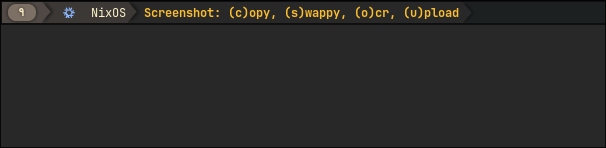
Here, I can only press the highlighted keys (C, S, O, U), each assigned to a separate functionality. Pressing C copies the screenshot image to the clipboard after it's taken. S opens the screenshot in the Swappy image editor. O performs OCR scanning on the image and copies the text to my clipboard. U uploads the image to my rustypaste server and stores the a public link of the image to my clipboard, allowing me to easily share the image with others.
As you can see, this is more of a custom screenshot script integrated with a Hyprland submap, rather than a Hyprland feature itself. However, combining custom scripts with custom bindings really hits the sweet spot in this context.
This is only the tip of the iceberg. There are so many things and so many possibilities you can have to make the system feel truly your own.

Custom magnifier binding
Sometimes I stay far from the screen with my wireless keyboard, during that period there comes a time I need to zoom in to read those blurry text. For that purpose I have a custom magnifier shortcut.
Making your own Desktop Environment
Since we've already discussed that Hyprland is only a window manager, we'll need various additional software to build a complete desktop environment that truly feels like your own.
Below is a table of all the software I use, along with some alternatives, that can help create a full desktop environment on top of Hyprland.
| Category | My Preferred Tool | Famous Ones / Alternatives |
|---|---|---|
| App Launcher | tofi | rofi-wayland, wofi, fuzzel |
| Terminal | foot, alacritty | kitty, wezterm, gnome-terminal |
| Notification Daemon | dunst | mako, swaync |
| Clipboard Manager | cliphist, wl-clipboard | copyq, clipman, parcellite |
| Wallpaper Setter | swww | hyprpaper, wbg, mpvpaper |
| Status Bar | waybar | eww, ironbar, polybar (X only) |
| Compositor (WM) | hyprland | sway, wayfire, river, labwc |
| Lock Screen | hyprlock, swaylock-effects, | swaylock, waylock, gtklock |
| Screen Capture | grim, slurp, swappy, wf-recorder, | wayshot, obs-studio |
| Bluetooth Manager | blueman | bluetuith, bluectl |
| Network Manager | nmtui, networkmanager-dmenu | nm-applet, network-manager |
| File Manager | yazi | nnn, thunar, pcmanfm, ranger, nautilus, dolphin |
| Media Player | mpv | vlc, celluloid |
| Login Manager | ly (if using TTY), greetd + gtkgreet | sddm, lightdm, |
It might not be for you
If you're looking for a system that comes with all the bells and whistles right after installation, this might not be the right choice for you. However, there are many pre-configured Hyprland setups available on GitHub.
Setting up Hyprland can take days, weeks, or even forever to achieve a pixel-perfect setup. It all depends on how much time you're willing to invest in customization.
Resources to get you started
- Hyprland Wiki
- Official Github Repo
- Community forums: r/unixporn, r/hyprland, Hyprland Discord
- Hyprland starter config
The world of tiling window managers isn't for everyone, but if you're someone who enjoys tinkering, optimizing, or just taking full control of your desktop - it's worth the dive.
If you need help with anything, or have question regarding my setup, feel free to contact me at Matrix